Tour of the app
The two levels of the app, the sidebar, breadcrumbs, search and the flow bar.
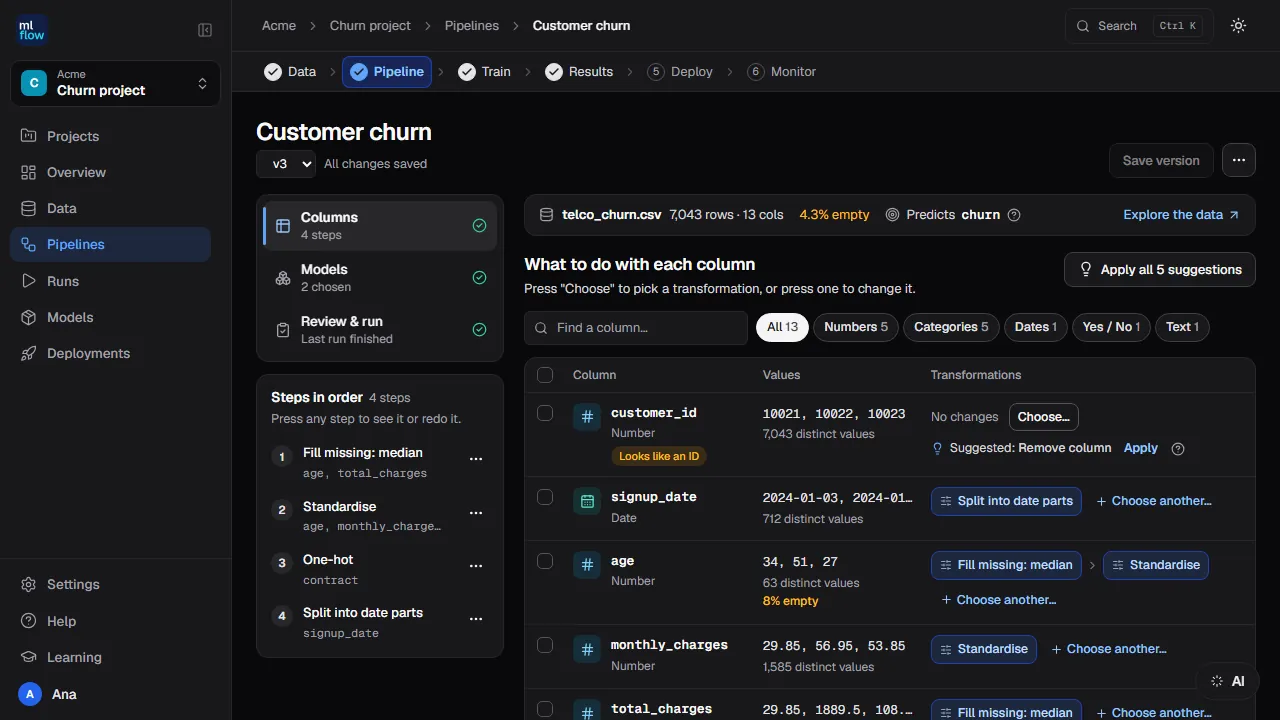
mlflow has two levels: the workspace and, inside it, the project. The sidebar, the breadcrumb and the page title always tell you which level you are on, so you can find your way without remembering URLs. This page walks through the shell that surrounds every screen.
Workspace and project
A workspace is where your team's data, models and deployments live. A project groups the work on one machine learning problem: its pipelines, runs, and the models and endpoints that come out of them. You can belong to several workspaces, and a workspace holds many projects. See Workspaces and projects for what lives at which level.
The sidebar changes with the level you are on.
| Level | Sidebar items |
|---|---|
| Workspace | Projects, Data, Models, Deployments, and Settings at the bottom |
| Project | Overview, Data, Pipelines, Runs, Models, Deployments, and Settings at the bottom |
The six project items follow the order of the work: add Data, build a Pipeline, train it to get Runs, register the best result as a Model, and publish it as a Deployment. Datasets belong to the workspace and are shared by its projects, so Data shows the same list at both levels. At project level, Models shows only the models of that project; select Show all projects to see the whole workspace.
The sidebar and the context switcher
Under the mlflow logo is the context switcher: a card with the workspace name in small text and the project name in bold. Select it to open a menu where you can:
- choose another project of the same workspace (a check mark shows the current one);
- select All projects or New project;
- select Workspaces at the bottom to move to another workspace, or All workspaces.
On the list of workspaces, the account pages and the platform admin pages, the card shows Choose a workspace, or keeps the last workspace you were in.
The item for the page you are on is highlighted. This also works on pages with a flat address: a run keeps Runs highlighted and a deployment keeps Deployments highlighted. Use Collapse sidebar at the bottom to shrink the sidebar to icons, and Expand sidebar to bring it back.
Settings sits at the bottom of the sidebar on both levels. It opens the workspace settings hub: general settings, members, usage and plan, connections and secrets, integrations, automation and templates.
Breadcrumbs and page headers
The bar above every page shows a breadcrumb, for example:
Workspace name > Project name > Runs > Run #a1b2c3
Every part is a link to a parent, so the breadcrumb is how you go up one level. Names of objects, such as a dataset or a pipeline, come from your data. mlflow has no separate "Back" button that follows your browser history; use the breadcrumb, or on a phone the arrow that goes up to the parent.
Below the bar, each page has the same header:
- the title, with a status badge such as Read-only where it applies;
- a line of context, for example the description and tags of a project;
- one primary action, shown as a filled blue button, and at most a couple of secondary actions;
- a More actions menu with the rest.
The project Overview
Every page of a project shows the flow bar under the top bar, with six steps, each a link to its page:
- Data
- Pipeline
- Train
- Results
- Deploy
- Monitor
Steps already done are marked, and the current one is highlighted. On Overview, the first page of a project, a line names the next step, and the page's primary button takes you there: Add data, New pipeline, Train a pipeline, Watch training, Deploy best model or Open deployment. If you have a read-only role, the button is hidden when the next step needs edit rights.
On Overview you also find Recent runs and Recent pipelines, each with a link to the full list. When nothing exists yet, an empty state tells you what to do next.
The header's More actions menu has Notebooks and Analyses (see Notebooks and analyses) and Members and access for the project.
Search and shortcuts
Press Ctrl + K (Cmd + K on a Mac), or select Search in the top bar, to open the command palette. Type part of a page name, such as "drift" or "compare", and use the up and down arrow keys and Enter to jump there. The palette lists the pages of the level you are on, your projects, and for platform administrators the admin pages. Press Esc to close it.
The user menu
The user menu is at the bottom of the sidebar, next to your avatar (on a phone, in the More sheet). It has:
- Account: your profile and password.
- API keys: the same Account page, on its API keys tab. See API keys and scopes.
- Platform admin, only if you are a platform administrator.
- Theme (light, dark or system) and Language.
- Sign out.
The top bar also has a button to switch quickly between the light and dark theme.
On a phone
Under the tablet width, the sidebar is replaced by a bottom bar with the first four items of the level you are on. A fifth tab, More, opens a sheet with the remaining items, Settings, your account links, the language picker and Sign out. The breadcrumb stays at the top, with an arrow to the parent page.
Next steps
Learn the theory
Lessons on learning.mlflow.es that explain the ideas behind this page.
Updated 2026-11-22